

If you have ever spent hours typing hundreds of invoice entries into Tally one by one, you already know how stressful it can be. You copy date here, paste ledger name there, check GST rate, re-check amount and still somewhere in row 287, there is typo mistake. A simple mistake in voucher can make your entire GST report wrong or create mismatch in your balance sheet.
Manual data entry into Tally is one of most common hectic tasks for small business owners, accountants and bookkeepers across India. It is slow, repetitive and almost always leads to human errors when dealing with large volumes of transactions every month.
There is smarter way. With Excel to Tally XML converter, you can stop entering data manually and instead convert your Excel spreadsheet directly into Tally-compatible XML file which you can then import into Tally ERP pr TallyPrime in seconds.
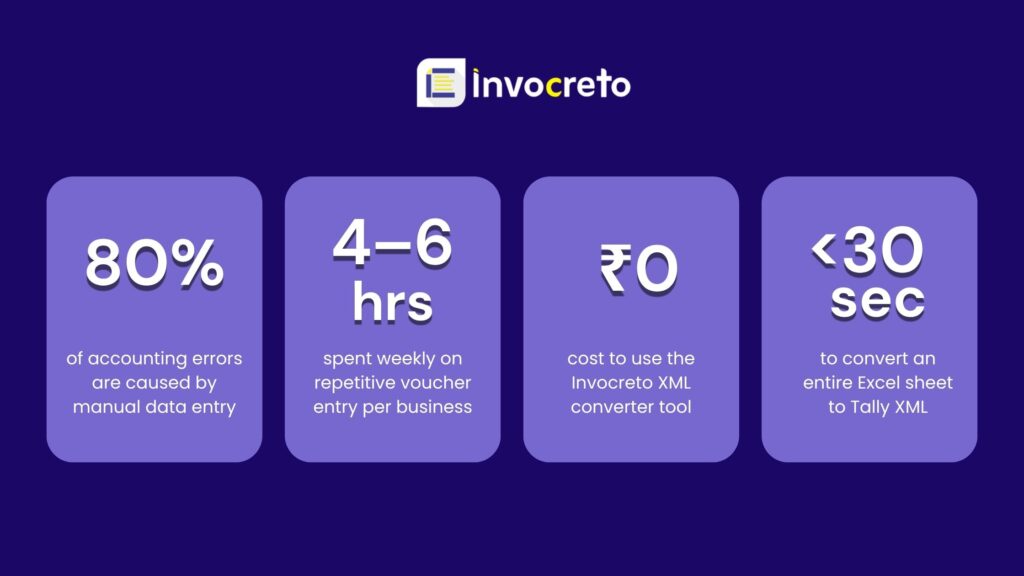
“If you are still typing invoices into Tally line by line, you are spending time that your business cannot afford to lose.”
What is excel to Tally XML converter?
An Excel to Tally XML converter is tool that makes existing Excel data which is sales entries, purchase records, receipts, payments, bank statements or journal entries and converts it into an XML file that Tally ERP or TallyPrime can read and import directly.
Tally uses specific XML format to accept bulk data. This format defines how each voucher should be structured, what ledgers it maps to, how GST values are split and what references are included. Writing this XML by hand is complicated. But converter does all that automatically, all you need to do is fill in your Excel file and upload it.
Tally’s import feature lets you bring in data from an XML file instead to typing it manually. This is built into Tally ERP 9 and TallyPrime. The XML just needs to follow Tally’s required structure which converter handles for you.
The Invocreto Excel to Tally XMl converter is built specifically for indian businesses. It supports GST, handles CGST/SGST/IGST splits automatically, and works with both Tally ERP 9 and TallyPrime.
How it works
Using converter is very simple. You do not need to be tech expert or Tally professional. Here is entire process from strat to finish:
1. Choose Your Voucher Type
Open Excel to Tally XML Converter tool and select the type of data you want to convert Sales Without Inventory, Purchase Without Inventory, Receipt Voucher, Payment Voucher, Bank Statement, or Journal Entry. Each type has its own structure.
2. Download Sample Template (Optional but Recommended)
The tool provides ready-made Excel template for each voucher type. Download it, fill in your data in correct format, and you are good to go. This avoids any formatting issues during conversion.
3. Fill in Your Excel Data
Enter your transaction data in Excel file. Key columns include date (DD/MM/YYYY), voucher type, ledger name, amount, GST details (CGST, SGST, IGST), payment mode, and narration or reference number if needed.
4. Upload Your Excel File
Click “Upload” or drag and drop your .xls or .xlsx file into the tool. The converter reads your data instantly without any delay.
5. Download the XML File
Click download. Your converted XML file is ready in seconds. This file is already formatted in exact structure Tally expects.
6. Import XML into Tally
Open Tally ERP 9 or TallyPrime, go to Import Data, select your XML file, and Tally will load all your entries automatically. Done no manual entry needed.
Tip: Always use sample template first.
Before converting your own data, download and review sample Excel file. It shows you exactly what format is expected, including column names, date format, and how GST fields should be filled. This saves time and prevents conversion errors.
What are different voucher types
Excel to Tally XML Converter tool supports six different types of vouchers, each one converts common accounting scenario that businesses face regularly.
Sales without inventory
This is for service-based businesses or businesses that do not track stock items in Tally. If you raise sales invoices for services like consulting, software, or any non-product billing, this is right option. The tool supports GST rates, auto adds round-off, and generates Tally-ready sales voucher XML.
Purchase without inventory
For businesses buying services or expense items that are not tracked as inventory, this option converts your Excel purchase data into Tally purchase voucher XML. It handles CGST, SGST, and IGST, and maps vendor ledger names correctly.
Receipt voucher
For businesses buying services or expense items that are not tracked as inventory, this option converts your Excel purchase data into Tally purchase voucher XML. It handles CGST, SGST, and IGST, and maps vendor ledger names correctly.
Payment voucher
Use this when you need to import outgoing payments like vendor payments, expense payments, or any other disbursement. Supports TDS, GST, round-offs, and all common payment modes.
Bank statement
This option is particularly useful for accountants who download bank statements and need to import them into Tally. The converter auto-detects transaction types like deposits, withdrawals, transfers, charges and creates proper Tally XML for each transaction row.
Journal entry
For adjustments, provisions, depreciation entries, or any debit-credit accounting entry that does not fit above categories, the Journal Entry converter is the right choice. It makes sure that debit equals credit and auto-balances entries for accuracy.
Manual entry vs. XML import
Still wondering if switching to Excel to Tally XML Converter is worth it?
| Factor | Manual Data Entry | Excel to Tally XML Import |
| Time for 100 entries | Quickly every month | Under 2 minutes |
| Risk of typing errors | Very High | Extremely Low |
| GST accuracy | Depends on user | Automatically handled |
| Works for bulk entries | Impractical | Yes, any volume |
| Requires Tally expertise | Yes | No |
| Can be done by non-accountants | Risky | Yes, easily |
| Cost | Staff time (expensive) | Free |
| Repeatable for monthly cycles | Tedious every month | Quick every month |
Who should use this tool?
Excel to Tally XML converter is built for anyone who works with both Excel and Tally
- Small business owners: Keep records clean without needing full-time accountant
- Freelancers & consultants: Convert service invoices from Excel to Tally with ease
- Accountants & bookkeepers: Handle multiple client accounts faster and more accurately
- GST practitioners: Prepare GST-compliant vouchers for Tally import effortlessly
- Startups: Set up accounting workflows without dedicated finance team
- Finance executives: Automate month-end closing entries in minutes
Tips for smooth conversion experience
To get best result from Excel to Tally XML Converter tool and avoid any issues during Tally import
Always match ledger names exactly: The ledger names in your Excel file must match the ledger names in your Tally company exactly including capitalization and spacing. If Tally can not find ledger, voucher will not import correctly
- Use DD/MM/YYYY date format
Tally expects dates in specific format. Always enter dates as DD/MM/YYYY in your Excel file for example, 15/03/2025. Using other formats like MM-DD-YYYY or writing “March 15” will cause import errors.
- Keep amount fields clean
Avoid currency symbols (₹), commas, or spaces in your amount columns. Enter only plain numbers like 15000 or 1500.50. The tool handles formatting automatically - Test with small batch first
If you are converting large file for the first time, try converting just 5–10 rows first. Import those into Tally and verify they look correct. Then proceed with full file. This saves you from finding problems after importing 500 entries. - Back up your tally data before importing
Always take a Tally backup before bulk importing data. In case something goes wrong like wrong ledger name, incorrect amounts, you can restore your data and fix the Excel file before trying again. - Use sample file as guide
Download sample template for each voucher type and keep it open side by side with your data. It shows you exactly what each column should contain, so you do not have to guess.
Why businesses are rapidly moving towards automation
In today’s competitive environment, businesses are under constant pressure to work faster, smarter and more accurately. Depends on manual processes is not practical now, it’s not only slows down operations but also increases chances of errors, delays and inefficiencies.
This is why more businesses small, medium and large are shifting towards automation. By converting Excel files into Tally-compatible XML format using Excel to Tally XML Converter, businesses can directly import data into Tally without manual entry. This not only saves time but also make sure of accuracy and consistency across all records.
Real life example
Let’s take a simple example of a small wholesale business.
A shop owner sells products to different retailers every day and keeps all sales records in Excel. At the end of day, there are around 500 entries including invoice number, customer name, product details, and amount.
Without Using a Converter:
The accountant opens Tally and starts entering each sale one by one.
- It takes around 3–4 hours daily to complete all entries
- Sometimes, wrong amounts or dates are entered by mistake
- A few entries may get missed or duplicated
- At the end of the day, reports are not ready on time
- During busy days, work gets delayed and piles up
With an Excel to Tally XML Converter:
Now, the same business uses an Excel to Tally XML converter.
- The accountant prepares all sales data in Excel
- Uploads the file into the converter tool
- Converts it into XML format in a few clicks
- Imports it into Tally within minutes
Result:
- All 500 entries are added in 5–10 minutes
- No need for manual typing
- Almost zero errors in data
- Sales reports are ready instantly
- The accountant saves time and can focus on other important work like checking reports or planning
Conclusion
Moving from manual data entry to automated tools is no longer choice, it’s must for any business that wants to save time and avoid mistakes. Typing every entry by hand takes hours and can kead to errors, which can cause problems in your accounts and reports, using Excel to Tally XML converter makes process simple and fast. It automatically imports your data into Tally, reduces mistakes and keeps your records accurate. This means you get error-free accounting, faster and less stress.
By starting with Excel to Tally XML converter, you are taking simple but important step toward smarter, faster and more reliable accounting. Make switch today and see difference in your business workflow.

1 comment
This is a really practical solution for anyone juggling high-volume accounting tasks. The manual entry process is not only time-consuming but also prone to errors that can have serious implications. It’s great to see tools that help streamline this process and improve accuracy. I’ve seen firsthand how much time and stress this kind of automation can save.